Make the request clear
Explain which file is needed and what the team will use it for. Send the supported upload link from the conversation.
Secure file uploads
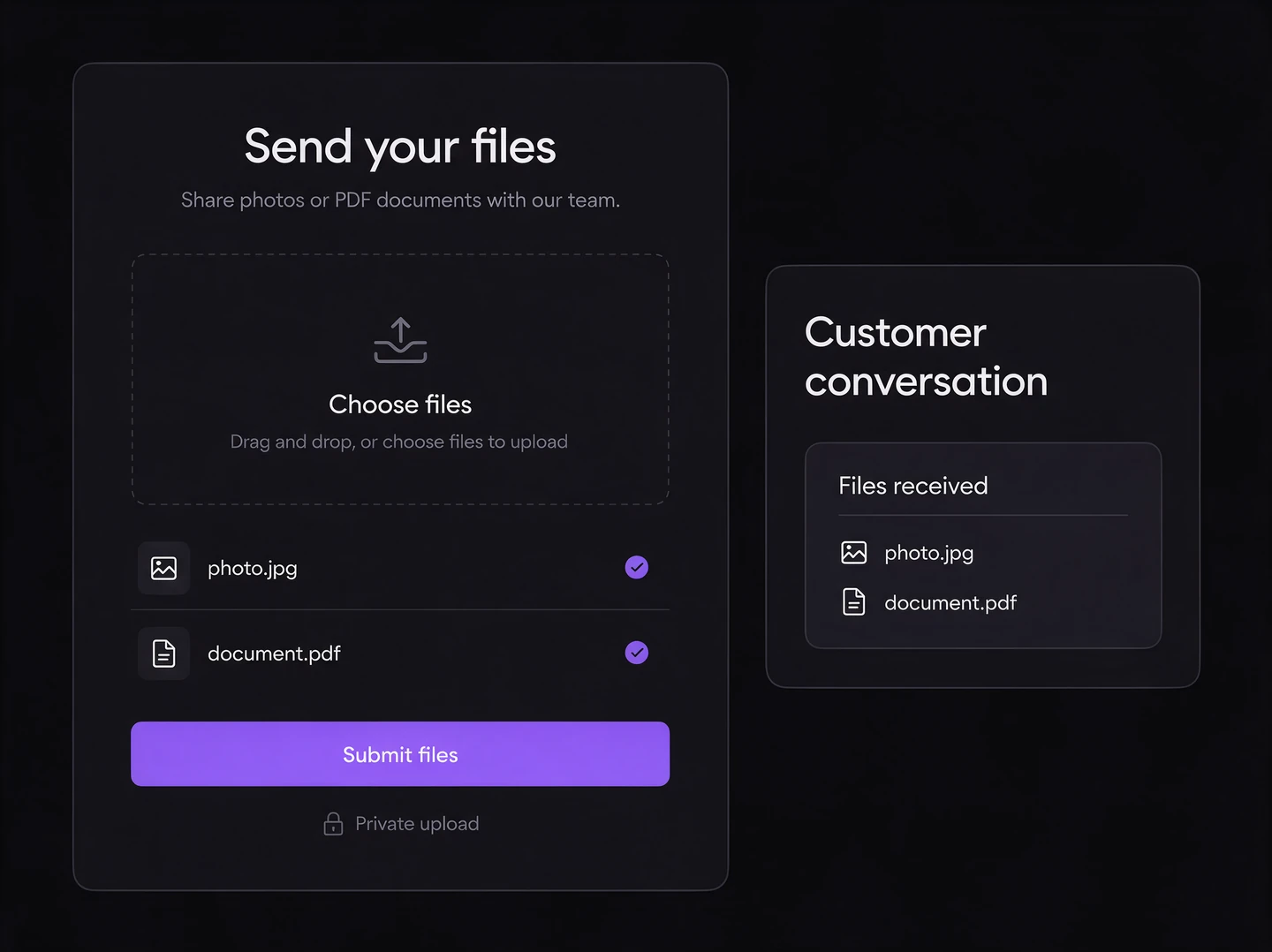
Use a private upload page to collect supported files and connect them to the relevant conversation.
Explain which file is needed and what the team will use it for. Send the supported upload link from the conversation.
Review uploaded material in its customer context, with the relevant access controls.
Review retention and AI-analysis settings for the workflow. Only enable processing that fits the intended purpose.
In your workspace
Authorized staff can review the file and continue the work.
Supported file types, size limits, link access and retention rules apply. Do not use a marketing example as a statement of regulatory compliance.
No. Analysis depends on the configured permissions and controls. You can keep uploads private and still let your team review them in context.
The customer uses the upload link in their browser. They do not need to sign in as an Entagl workspace user.
No. The upload flow is designed for private collection, and access follows its supported controls.
Connected capabilities